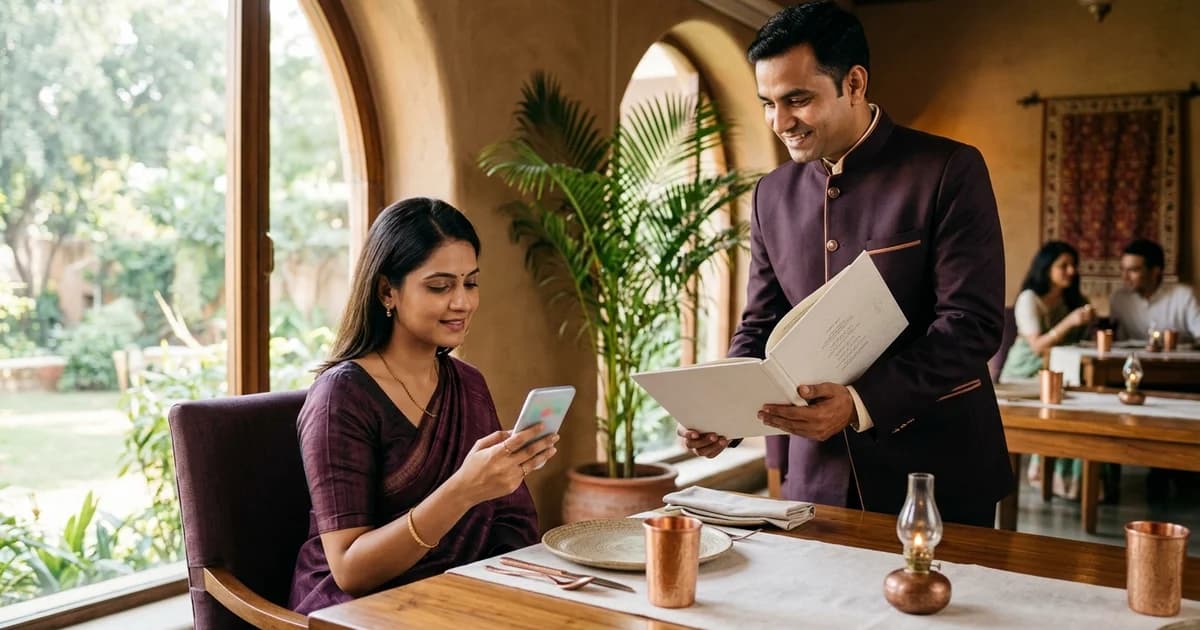
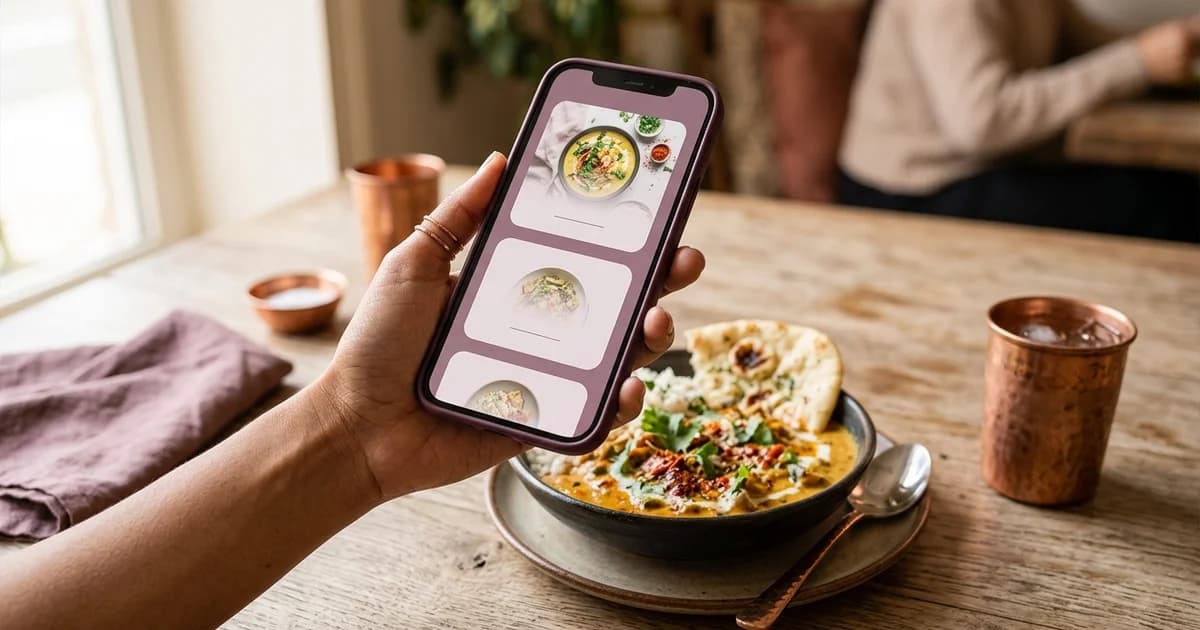
How do you scan a restaurant QR menu?
Open the phone’s camera, point it at the complete QR code, wait for the link or banner, then check the destination before opening it. On iPhone, Apple’s instructions say to use Camera in Photo mode and tap the link that appears. Google Camera can recognize QR codes on supported Android devices; the Pixel help page also describes Camera and Quick Settings options. Exact controls vary by model and software version, so a dedicated scanner in the phone’s quick controls is a fallback if the camera does not detect the code.
A scan reads what the QR symbol encodes. It does not prove the page is safe, confirm that the page belongs to the restaurant, or tell you whether the restaurant accepts orders there. A menu code may open a website or PDF. An ordering code may open a service that accepts choices. A payment code may direct to a payment app or payment page. These are distinct destinations even when all use a QR symbol.
Steps to open a menu on iPhone or Android
1. Use the phone’s camera or built-in code-scanning control. Keep the whole square inside the camera view and hold the phone steady.
2. Wait for the device to show a link or action. Do not assume the camera must take a photograph; current camera flows can show a tap target directly.
3. Read the displayed domain or preview. If the QR label says it is the restaurant menu but the link leads to an unexpected domain, ask staff before continuing.
4. Tap the link only after checking it. The page may open in a browser, a restaurant app, or another supported app depending on the encoded data and device.
5. If the page does not load, check connectivity and ask for the restaurant’s printed menu or staff-assisted option.
The precise user interface varies across operating-system releases and manufacturers. Apple documents its Camera and Control Center scanner; Google notes QR scanning in Camera is available only on selected devices. A phone may need an enabled camera-scanning option or a separate scanner control.
If the code will not scan
Try moving the phone slightly closer or farther away while keeping every edge visible. Improve lighting and avoid glare from a glossy cover or direct reflections. Clean the camera lens and wait for focus. If the code is on a screen, increase the display brightness. If it is printed, check whether the paper is folded, the code is blurred, or the surrounding margin is crowded by text and decoration.
Do not use a random “menu scanner” app just because the camera did not respond. First try the device’s built-in scanner or ask restaurant staff for help. An app from an unknown publisher may request permissions that are not needed simply to open a web link. A printed menu or accessible alternative is also reasonable; guests should not have to install an unfamiliar application to read what a restaurant serves.
Check the destination before ordering or paying
A QR symbol can encode different kinds of information. Review the link preview and the destination domain before entering personal, account or payment details. If a code appears to have a sticker placed over the restaurant’s original print, do not proceed until staff confirm it. A menu link should lead to menu information; it does not necessarily place an order. Likewise, seeing a QR code on a bill does not by itself establish how a payment should be made.
If the camera does not open the menu
Check that the entire square fits inside the camera frame, move to a well-lit position and hold the phone steady. On an iPhone, Apple documents opening Camera, framing the code and tapping the link displayed. Android steps vary by device and camera app; Google’s Camera and Pixel help pages describe supported scanning flows. If the camera does not detect the code, use the phone’s built-in Lens or QR option if present, or ask staff for the menu rather than installing an unfamiliar scanner app from a link on the table.
Check the link before visiting it
Read the address preview and check that it appears to belong to the restaurant or its known menu provider. A QR code can point to any URL, so the visual pattern alone does not confirm who operates the destination. Do not enter payment or personal information just to view a menu. If the page requests unusual access, downloads an unexpected file or shows a different business, close it and ask staff. A printed menu or staff-assisted option remains a reasonable fallback for a guest who cannot scan.
For restaurant teams, test the guest-facing path on real phones before printing a batch. The articles on how to get restaurant QR codes for free, QR menu cost in India, and how to create a QR code menu cover related questions from the diner and operator sides.
Do you need an app to scan a restaurant menu?
Often, no separate menu app is needed when the phone supports QR recognition in its camera or scanner control. The device displays a link that opens in a browser or another application. Features vary by device. If scanning is unavailable or difficult, ask the restaurant to provide the menu in another format.
Sources and further reading
- Apple Support: Scan a QR code with your iPhone camera
- Google Camera Help: Scan QR codes
- Google Pixel Help: Scan QR codes with your Pixel phone
Source links support the facts above. Check dated source material for current details.
Keep reading