How do you create a QR code menu?
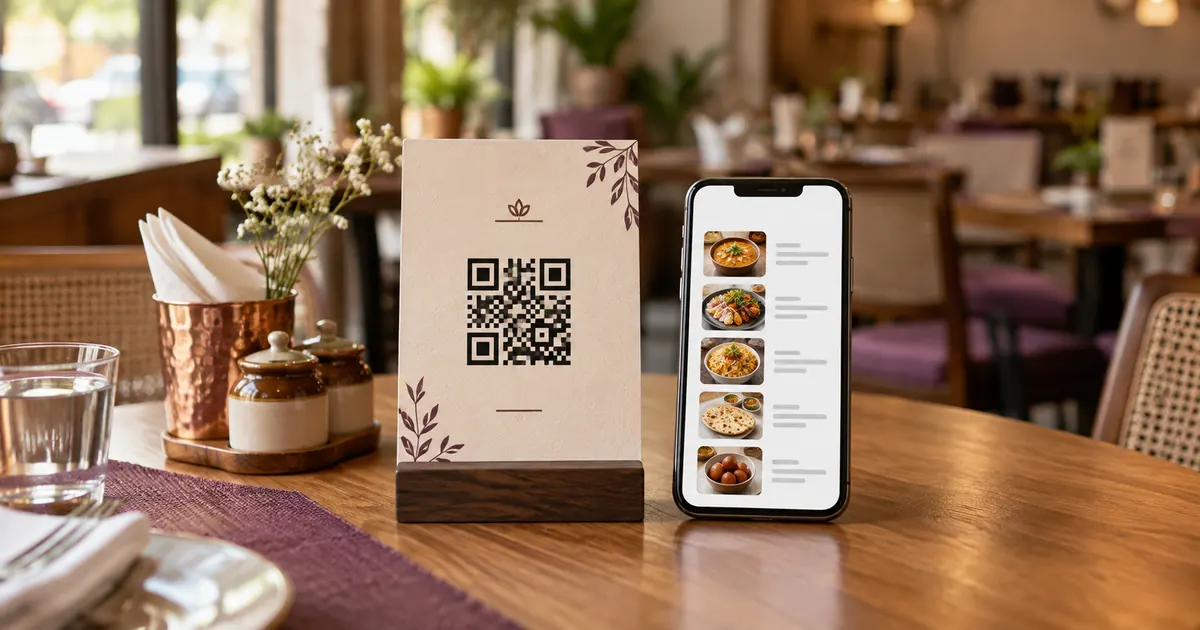
Create the guest-facing menu page first, copy its public address, encode that address in a QR code, then test the printed code on phones before putting it on tables. The QR symbol is only the pointer; the menu is the destination page. It does not, by itself, add an ordering flow or payment function. Decide what guests should be able to do before choosing software or printing codes.
Prepare the menu destination
Use the final page guests are meant to open. Check that item names, prices, sections, availability and required notices are current. Open the page on a phone while signed out of any restaurant-owner account. Make sure it loads without an edit preview, staff-only permission or a download that requires a login. If the menu is a PDF, inspect it on a small screen and verify the text is readable without excessive zooming.
Choose an address the restaurant expects to keep. A printed static QR code contains the encoded address; changing the target later usually means changing the web page at that same address or printing a new code. A dynamic service can route through a provider redirect and may allow the destination to be edited, but its terms, account requirements and continued availability need checking. Do not treat “dynamic” as a property guaranteed by the QR standard itself.
Generate the QR image
Select a QR option that encodes a website URL, paste the complete menu address, and generate the symbol. Save the original image file and note its destination. A vector export such as SVG is useful for print because it can be scaled without the same pixelation risk as a small raster image; a sufficiently large PNG may also work. Keep a plain, high-contrast design while first testing the code. Decorative frames or logos are optional styling and can make a code harder to scan if they interfere with its patterns or margin.
QR Code has error-correction mechanisms, but that does not make damage, low contrast or a crowded border harmless. GS1’s guidance for QR symbols in retail specifies a four-module clear quiet zone on each side. Preserve clear space around the symbol and avoid placing text, borders or illustrations inside it. The standard’s error correction is not a substitute for correct print preparation.
Print one proof and test the whole path
Before ordering many table cards, print one sample at the actual intended dimensions and on the intended stock or holder. Test it at normal guest distance under the venue’s lighting. Try more than one phone where possible. Scan from common angles, check for glare, and confirm that the complete QR square fits in the camera view. Verify that the decoded address opens the final menu and that its content is legible on mobile.
Keep a record for every printed code
For each code, record its decoded URL, venue or branch, table or display location, file version and test date. This is particularly useful when a restaurant has separate locations, table ordering or takeaway destinations. A spreadsheet can map each printed item to its destination without embedding a table number in the menu page itself. Re-scan after changing a redirect, menu domain, design or print vendor.
A static QR image usually encodes the original destination; editing the menu at that same URL can preserve the print, while changing the address may require a new code. A managed redirect may allow destination changes through an account, but the restaurant should confirm ownership, fees and what happens if the service ends. Do not promise guests that a code is permanent unless the destination and any redirect service remain available. Keep an alternative way to view the menu.
Check each different destination if codes vary by table, branch or ordering context. A code that resolves to the right menu for one table may still be wrong elsewhere. Keep a list matching each printed code or destination to the table or venue where it belongs. Re-test after a menu link, domain, redirect, holder or print vendor changes. For further detail, see how to get restaurant QR codes for free, QR menu cost in India, and how to scan a restaurant QR menu.
Keep a non-scan route available
Not every guest can or wants to use a phone camera. Keep a staff-assisted way to read the menu, and consider a printed copy or another accessible format. Make it clear that a guest can ask for help. A QR link is one access route; it should not be described as the only route unless the venue has evaluated accessibility and applicable requirements.
Is a QR menu the same as QR ordering?
No. A view-only QR menu opens information for browsing. An ordering flow adds a way to submit choices and requires a process for receiving, confirming and preparing them. Payment is another capability that can be offered through a separate flow. Describe what the current menu experience actually does, then test each step as a guest would encounter it.
Sources and further reading
- DENSO WAVE: What is a QR Code?
- GS1: 2D barcode retail implementation guidance
- Apple Support: Scan a QR code with your iPhone camera
Source links support the facts above. Check dated source material for current details.
Keep reading